Setting Up Rate Plans in Semeru
Learn how to create flexible pricing strategies with seasonal rates, date-range pricing, occupancy surcharges, and cancellation policies in Semeru.
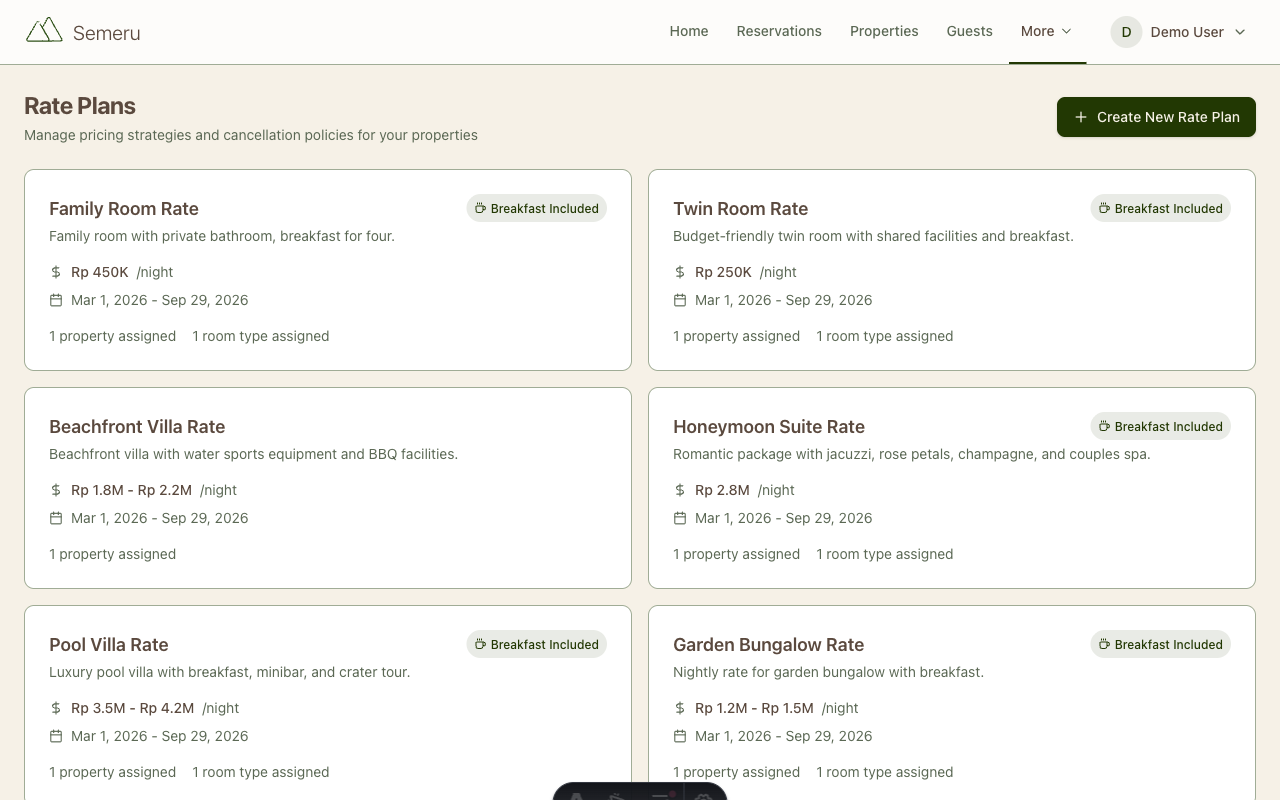
Pricing is one of the most important levers in hospitality. Whether you need seasonal rates, weekend premiums, or occupancy-based surcharges, Semeru’s rate plan system gives you the flexibility to price your rooms exactly the way you want.
What Is a Rate Plan?
A rate plan is a pricing configuration that defines how much a room costs per night over a specific date range. Each rate plan can include:
- Base nightly rate: the default price per night
- Date-range pricing: different rates for different periods (peak season, holidays, off-peak)
- Occupancy surcharges: extra charges per additional adult or child
- Breakfast inclusion: flag whether breakfast is part of the rate
- Cancellation policy: refund rules tied to the rate
You can create as many rate plans as you need and assign them to specific properties or room types.
Creating a Rate Plan
Navigate to Rate Plans from the sidebar (under the More menu) and click Create New Rate Plan.
Basic Information
Start with the essentials:
- Name: a clear, descriptive name like “Peak Season Rate” or “Standard Room + Breakfast”
- Description: what’s included and any special conditions
- Currency: defaults to IDR
Date-Range Pricing
This is where rate plans get powerful. You can define multiple date ranges, each with its own nightly rate:
- Period 1: March 1 - May 31 → Rp 450,000/night (low season)
- Period 2: June 1 - August 31 → Rp 650,000/night (peak season)
- Period 3: December 20 - January 5 → Rp 800,000/night (holiday)
When a guest books a stay that spans multiple periods, Semeru automatically applies the correct rate for each night. For example, a check-in on May 30 and check-out on June 2 would charge two nights at Rp 450K and two nights at Rp 650K.
Occupancy-Based Pricing
Each rate plan has a base occupancy, the number of guests included in the nightly rate. You can then charge extra per additional adult or child:
- Base occupancy: 2 adults
- Extra adult charge: Rp 150,000/night
- Extra child charge: Rp 75,000/night
So a family of 2 adults and 2 children would pay the base rate plus Rp 150,000/night in surcharges.
Breakfast Inclusion
Toggle the Breakfast Included flag to indicate whether the rate comes with complimentary breakfast. This is displayed on the rate plan card and in reservation details, so your team always knows what the guest is entitled to.
Cancellation Policy
Attach a cancellation policy to each rate plan. Semeru supports five built-in policy types:
- Flexible: full refund if cancelled 24 hours before check-in
- Moderate: full refund if cancelled 5 days before check-in
- Strict: full refund if cancelled 7+ days before check-in
- Non-refundable: no refund after booking
- Custom: define your own refund window and percentage
Each policy clearly states the refund terms, so there’s no ambiguity for your guests.
Viewing Rate Plan Details
Click on any rate plan to see its full details:
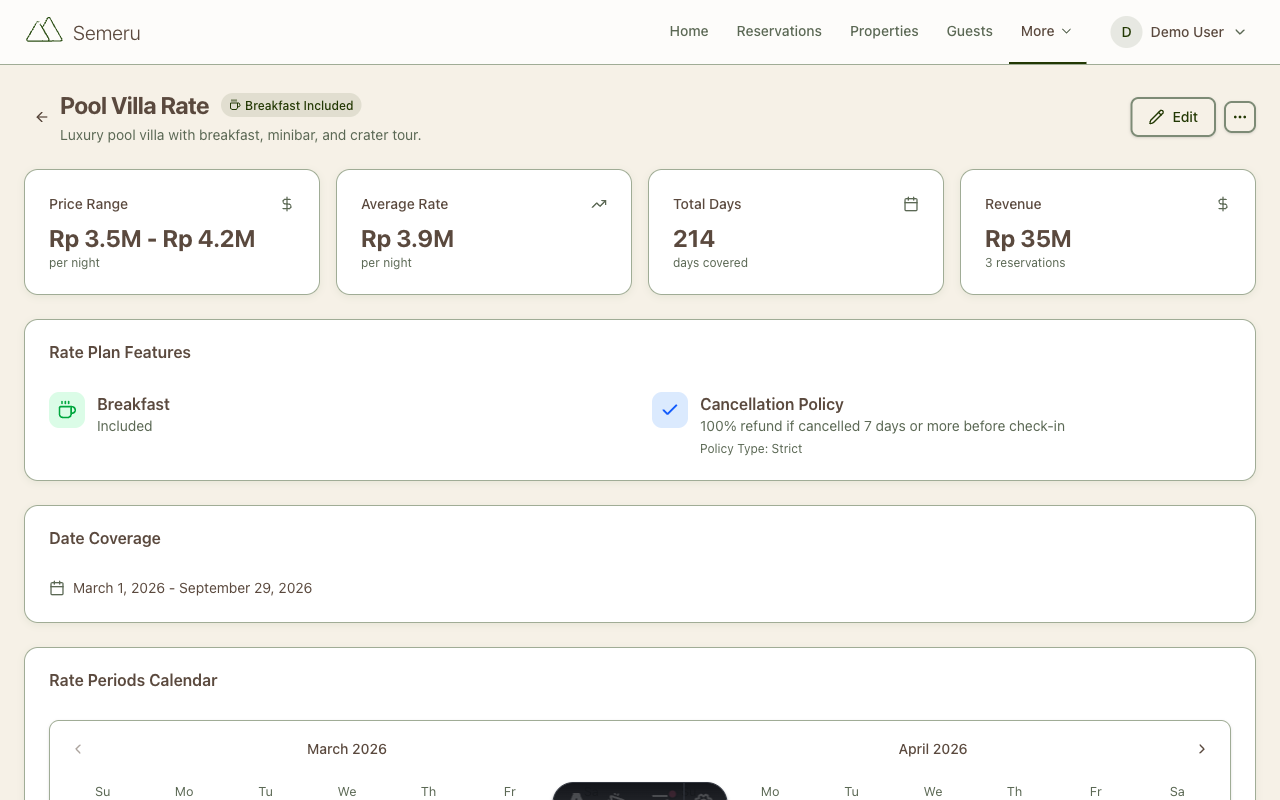
The detail page shows you:
- Price range and average rate: quick summary of the pricing
- Total days covered: how many days the rate plan spans
- Revenue generated: total revenue from reservations using this rate
- Rate Plan Features: breakfast inclusion and cancellation policy at a glance
- Rate Periods Calendar: a visual calendar showing the nightly rate for each day
- Assigned Properties & Room Types: which properties and rooms use this rate
- Recent Reservations: bookings that used this rate plan
Assigning Rate Plans
Rate plans are flexible in how they can be assigned:
Property-Level Assignment
Assign a rate plan to an entire property. All room types under that property will use this rate as their default. This is ideal for villas or small properties where all rooms share the same pricing.
Room Type-Level Assignment
Assign a rate plan to a specific room type within a property. This is useful when different room categories (Standard, Deluxe, Suite) have different pricing. Room type assignments take priority over property-level assignments.
To assign a rate plan, open the rate plan detail page and click Assign Rate Plan. Select the property or room type from the dropdown.
Tips for Effective Pricing
Start Simple
If you’re just getting started, create one rate plan per room type with a single date range. You can always add seasonal variations later as you understand your booking patterns.
Use Descriptive Names
Name your rate plans clearly. “Deluxe Suite Rate” is better than “Rate Plan 3”. When your team looks at a reservation, the rate plan name should immediately tell them what’s included.
Plan Seasonal Rates in Advance
Create your peak season and holiday rates before the season starts. This ensures that any bookings made in advance automatically get the correct pricing.
Review Revenue by Rate Plan
The rate plan detail page shows revenue generated from each plan. Use this to understand which pricing strategies work best and adjust accordingly.
Combine with Rate Periods
For maximum flexibility, create broad rate plans with multiple date-range periods. Instead of creating separate rate plans for each season, use one rate plan with different pricing periods. This keeps your rate plan list clean and manageable.
What’s Next?
- Getting Started: Set up your property and rooms if you haven’t already
- Managing Reservations: See how rate plans connect to the reservation workflow
- Billing & Invoicing: Generate invoices based on your rate plan pricing