Billing & Invoicing with Semeru
Generate professional invoices, add line items and taxes, track payments, and manage your property's billing workflow in Semeru.
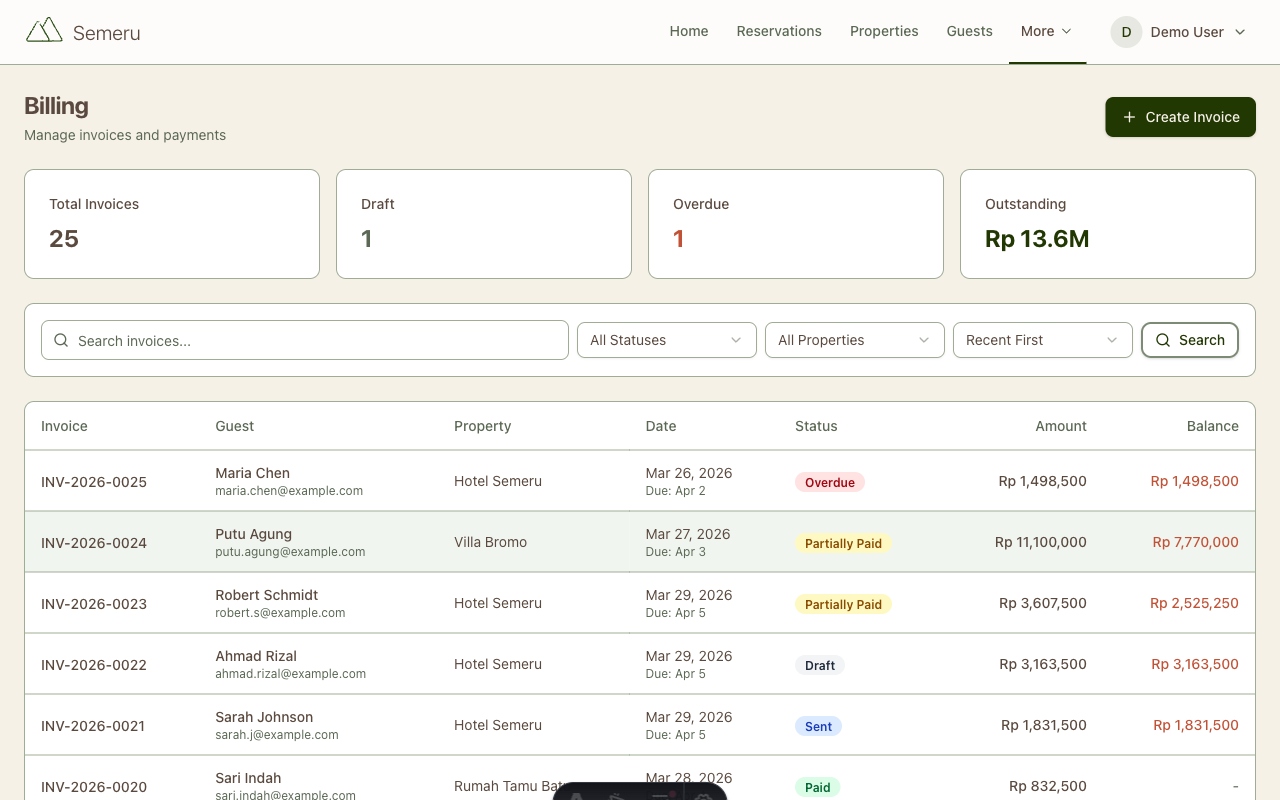
Getting paid shouldn’t be complicated. Semeru’s billing system lets you create professional invoices, track payments, and keep your finances organized, all from one place. Here’s how to make the most of it.
Creating an Invoice
Invoices in Semeru are linked to reservations. To create one:
- Open a reservation from the Reservations page
- Click Create Invoice
- Semeru auto-generates the invoice with the stay details: dates, room, and rate
The invoice is created in Draft status, giving you a chance to review and customize it before sending.
Adding Line Items
Beyond the room charge, you can add extra line items for:
- Additional services: airport transfers, laundry, spa treatments
- Food and beverage: restaurant charges, minibar, room service
- Damage deposits: refundable deposits for security
- Discounts: percentage or fixed-amount discounts for loyal guests or promotions
Each line item includes a description, quantity, unit price, and total. This gives your guests a clear, itemized breakdown.
Taxes and Fees
Semeru supports configurable tax rates. Apply taxes to the entire invoice or individual line items:
- Government tax (PB1): the standard hospitality tax in Indonesia
- Service charge: commonly 5-10% in hotels
- Custom fees: any additional charges specific to your property
Tax amounts are calculated automatically and shown as a separate line on the invoice.
Invoice Statuses
Track where each invoice stands:
- Draft: still being prepared, not yet sent to the guest
- Sent: invoice has been shared with the guest
- Paid: payment has been received and recorded
- Overdue: payment deadline has passed
- Cancelled: invoice was voided
The billing dashboard shows a summary of all invoices by status, so you can quickly see what’s outstanding.
Recording Payments
When a guest pays, record it on the invoice:
- Open the invoice and click Record Payment
- Select the payment method: cash, bank transfer, credit card, or online payment
- Enter the amount and any reference number
- The invoice status updates automatically to Paid (or Partially Paid if applicable)
For properties using Stripe or Xendit, Semeru can process online payments directly. Guests receive a payment link, pay online, and the invoice updates automatically.
Generating PDF Invoices
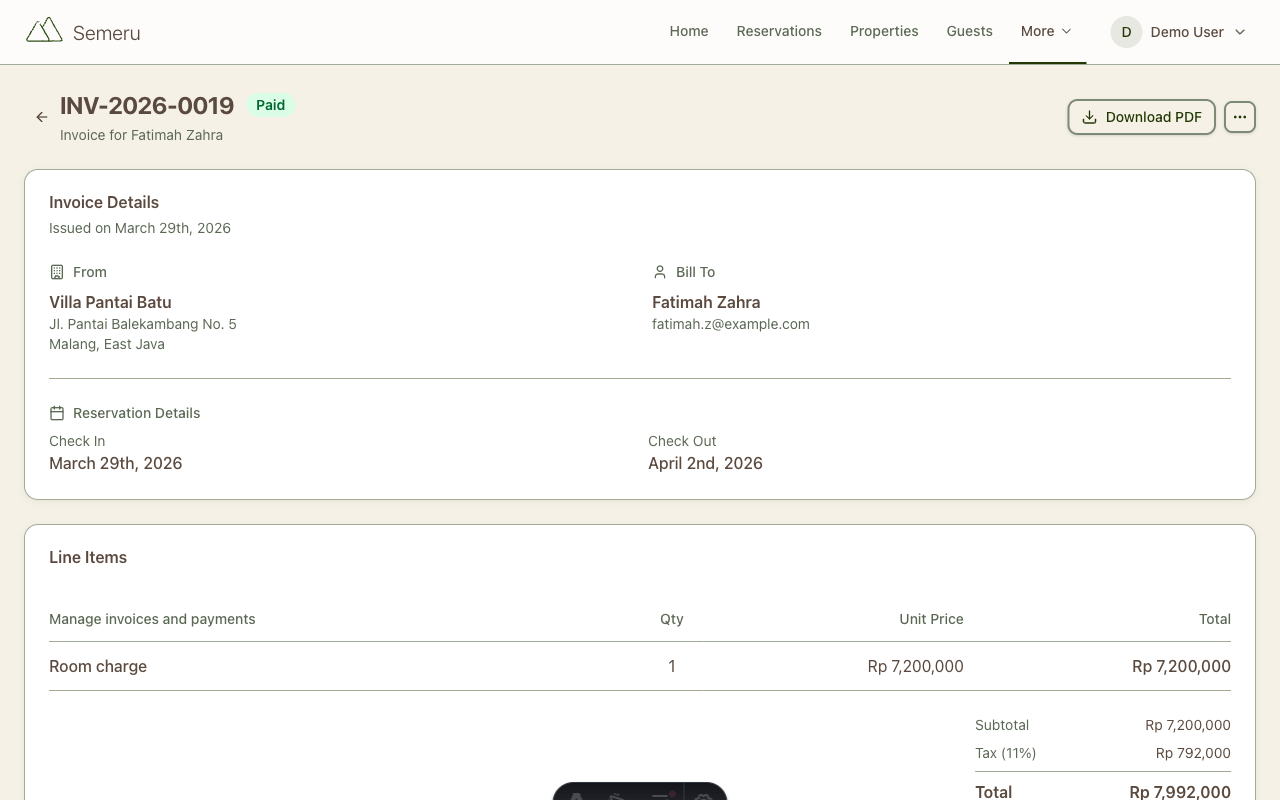
Need to share an invoice with a guest? Click Download PDF to generate a professional, branded invoice. The PDF includes:
- Your property name and logo
- Guest details
- Itemized charges with taxes
- Payment status and instructions
- Invoice number for record-keeping
You can share the PDF via email, WhatsApp, or print it for walk-in guests.
Tips for Better Billing
Create Invoices Early
Generate invoices at check-in (or even before arrival for pre-paid bookings). This gives guests time to review charges and avoids last-minute billing confusion at check-out.
Use Consistent Naming
Keep your line item descriptions consistent across invoices. Instead of “Room” on one invoice and “Accommodation” on another, pick a standard name. This makes your financial reports cleaner.
Track Outstanding Payments
Check the billing dashboard regularly for Overdue invoices. A friendly reminder message via WhatsApp can speed up collections.
Review Monthly Summaries
Use the billing filters to review invoices by date range. This is helpful for monthly revenue reports and tax filings.
What’s Next?
- Getting Started: Set up your property and rooms if you haven’t already
- Managing Reservations: Master the reservation workflow that feeds into billing
- Rate Plans: Set up seasonal pricing and promotional rates that automatically apply to new reservations